Tutorial 31: Your First 3D Triangle
What you’ll learn
- The 3D coordinate system CNA uses and how it differs from screen space.
- Filling a
VertexBufferwithVertexPositionColordata. - Setting world, view and projection on a
BasicEffect. - Drawing with
DrawPrimitives, and whySpriteBatchhas no role here.
Before you start — Tutorial 06: Drawing Your First 2D Shape — and note that the matrices used here get their full treatment in Tutorial 33: Matrices and Transformations, so a rough idea is enough for now. Requires a 3D-capable renderer such as OPENGLES3 or VULKAN; the 2D-only renderer (SDL_RENDERER) throws on 3D calls by default, and STUB reports no 3D capability at all.
3D rendering in CNA needs a renderer with a 3D pipeline. OPENGLES3 and VULKAN are the usual choices, and 11 of this snapshot’s 14 renderer identities rasterise 3D. It is not available on SDL_RENDERER, which is the default renderer on every platform except desktop Linux and Emscripten, and throws on 3D calls. Build with -DCNA_GRAPHICS_RENDERER=OPENGLES3 to follow this tutorial.
3D Coordinate System
CNA (and XNA) use a right-handed coordinate system: X points right, Y points up, Z points toward the viewer (out of the screen). This is the same as OpenGL.
To get a triangle onto the screen, three spaces are involved:
| Space | Matrix | Description |
|---|---|---|
| World space | World | Where objects sit in the scene |
| View (camera) space | View | Scene from the camera's perspective |
| Clip / NDC space | Projection | Perspective divide; x and y map to [-1,1], depth to [0,1] (the Direct3D/XNA convention) |
The GPU multiplies each vertex position by World × View × Projection to arrive at Normalized Device Coordinates (NDC), then maps those to the viewport pixels. BasicEffect does this multiplication for you once you set the three matrices.
VertexPositionColor Struct
The simplest 3D vertex type carries a position and a colour:
#include "Microsoft/Xna/Framework/Graphics/VertexPositionColor.hpp"
// Also available:
// VertexPositionTexture.hpp          — position + UV
// VertexPositionNormalTexture.hpp    — position + normal + UV (required for lighting)
// VertexPositionColorTexture.hpp     — position + colour + UV

VertexPositionColor v;
v.Position = Vector3(0.0f, 0.5f, 0.0f);
v.Color    = Color::Red;
Each vertex type has a static VertexDeclaration member that describes its layout to the GPU. You pass this to the VertexBuffer constructor.
VertexBuffer Creation
A VertexBuffer stores vertex data on the GPU. Create it with the device, the vertex layout, the count, and a usage hint:
#include "Microsoft/Xna/Framework/Graphics/VertexBuffer.hpp"

VertexPositionColor vertices[3] = {
    { Vector3( 0.0f,  0.5f, 0.0f), Color::Red   },
    { Vector3( 0.5f, -0.5f, 0.0f), Color::Green },
    { Vector3(-0.5f, -0.5f, 0.0f), Color::Blue  },
};

auto vb = std::make_unique<VertexBuffer>(
    getGraphicsDeviceProperty(),
    VertexPositionColor::getVertexDeclarationStatic(),
    3,                    // vertex count
    BufferUsage::None     // None: GetData() works; WriteOnly: GetData() throws NotSupportedException
);
vb->SetData(vertices, 3);  // upload to GPU
BufferUsage only controls readability: None allows GetData(), while WriteOnly makes every GetData() call throw System::NotSupportedException. SetData stays legal on both; there is no CNA-verified speed difference to rely on.
BasicEffect Setup
BasicEffect is CNA's built-in shader for unlit and lit geometry. For a coloured triangle set VertexColorEnabled and provide the three transform matrices:
#include "Microsoft/Xna/Framework/Graphics/BasicEffect.hpp"

auto effect = std::make_unique<BasicEffect>(getGraphicsDeviceProperty());
effect->VertexColorEnabled = true;   // use per-vertex Color
effect->setLightingEnabledProperty(false);     // no lighting for this example

// World: identity — triangle is at the origin
effect->setWorldProperty(Matrix::getIdentityProperty());

// View: camera at (0,0,3) looking at origin
effect->setViewProperty(Matrix::CreateLookAt(
    Vector3(0.0f, 0.0f, 3.0f),   // camera position
    Vector3::Zero,                 // look-at target
    Vector3::Up));                 // up direction

// Projection: 45-degree FOV, aspect 800/600, near 0.1, far 100
effect->setProjectionProperty(Matrix::CreatePerspectiveFieldOfView(
    MathHelper::PiOver4,
    800.0f / 600.0f,
    0.1f, 100.0f));
DrawPrimitives Call
The draw sequence is always: bind vertex buffer → apply effect pass → draw:
auto& gd = getGraphicsDeviceProperty();

// 1. Bind the vertex buffer
gd.SetVertexBuffer(vb_.get());

// 2. For each pass in the technique, apply and draw
for (auto& pass : effect_->getCurrentTechniqueProperty()->getPassesProperty()) {
    pass.Apply();
    // PrimitiveType::TriangleList: every 3 vertices = 1 triangle
    // startVertex = 0, primitiveCount = 1
    gd.DrawPrimitives(PrimitiveType::TriangleList, 0, 1);
}
For PrimitiveType::TriangleList, primitiveCount is the number of triangles, not vertices. Two triangles (a quad) would be primitiveCount = 2 with 6 vertices.
Two spellings of the pass loop. Range-for over the pass collection uses a CNAEXT begin()/end(). The XNA-pure spelling of the same thing for a single-pass effect such as BasicEffect is effect_->getCurrentTechniqueProperty()->getPassesProperty()[0]->Apply();; the integer subscript returns a pointer (null when out of range), so it needs ->, not ..
Notice that nothing here calls Present(). Game runs BeginDraw, your Draw, then EndDraw, and EndDraw presents the frame. A manual gd.Present() at the end of Draw() would present a second time every frame.
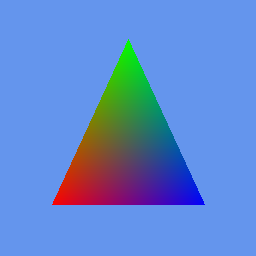
This is what the code above produces: one VertexPositionColor triangle, its three vertex colours interpolated by the rasteriser. The image is genuine Microsoft XNA 4.0 runtime output from CNA's oracle corpus (tools/xna-oracle/, captured under Wine + DXVK on Linux), against which CNA's DIRECTX9 renderer is diffed at --tolerance 0 — so this is the frame the original runtime drew. (The diff is recorded 0-difference across the corpus, but it is run by hand, not in CNA's CI.)
Why No SpriteBatch in 3D
SpriteBatch is a high-level 2D helper — it internally creates its own vertex buffer and sets an orthographic projection. In 3D you manage these directly so you can control every aspect of the pipeline.
You can mix them: render the 3D scene first, then wrap the HUD in a SpriteBatch::Begin() / End() pair. But SpriteBatch does not restore the graphics state it changes: Begin()/End() leave their own blend state, sampler state 0, depth-stencil state and rasterizer state on the device (the same as XNA and FNA). The next 3D draw therefore has to put those four back, exactly as the snippet below does at the top of Draw(). The effect’s own matrices are stored on the BasicEffect and are not touched.
void Draw(const GameTime&) override {
    auto& gd = getGraphicsDeviceProperty();
    gd.Clear(Color::CornflowerBlue);

    // SpriteBatch left its own state on the device after last frame's HUD,
    // so restore the 3D state before drawing 3D.
    gd.setBlendStateProperty(BlendState::Opaque);
    gd.setDepthStencilStateProperty(DepthStencilState::Default);
    gd.setRasterizerStateProperty(RasterizerState::CullCounterClockwise);
    gd.getSamplerStatesProperty()[0] = SamplerState::LinearClamp;

    // --- 3D scene ---
    gd.SetVertexBuffer(vb_.get());
    for (auto& pass : effect_->getCurrentTechniqueProperty()->getPassesProperty()) {
        pass.Apply();
        gd.DrawPrimitives(PrimitiveType::TriangleList, 0, 1);
    }

    // --- 2D HUD on top ---
    spriteBatch_->Begin();
    // draw HUD sprites / text here
    spriteBatch_->End();

    // No gd.Present() here: Game presents in EndDraw, after Draw() returns.
}
Complete Example — Rotating Coloured Triangle
#include <memory>
#include "Microsoft/Xna/Framework/Game.hpp"
#include "Microsoft/Xna/Framework/GameTime.hpp"
#include "Microsoft/Xna/Framework/Color.hpp"
#include "Microsoft/Xna/Framework/MathHelper.hpp"
#include "Microsoft/Xna/Framework/Matrix.hpp"
#include "Microsoft/Xna/Framework/Vector3.hpp"
#include "Microsoft/Xna/Framework/GraphicsDeviceManager.hpp"
#include "Microsoft/Xna/Framework/Graphics/BasicEffect.hpp"
#include "Microsoft/Xna/Framework/Graphics/VertexBuffer.hpp"
#include "Microsoft/Xna/Framework/Graphics/VertexPositionColor.hpp"
#include "Microsoft/Xna/Framework/Graphics/PrimitiveType.hpp"
#include "Microsoft/Xna/Framework/Graphics/BufferUsage.hpp"

using namespace Microsoft::Xna::Framework;
using namespace Microsoft::Xna::Framework::Graphics;

class TriangleGame final : public Game {
public:
    TriangleGame() : graphics_(this) {
        graphics_.setPreferredBackBufferWidthProperty(800);
        graphics_.setPreferredBackBufferHeightProperty(600);
    }

protected:
    void LoadContent() override {
        effect_ = std::make_unique<BasicEffect>(getGraphicsDeviceProperty());
        effect_->VertexColorEnabled = true;
        effect_->setLightingEnabledProperty(false);

        // Fixed view and projection (don't change each frame)
        effect_->setViewProperty(Matrix::CreateLookAt(
            Vector3(0.0f, 0.0f, 3.0f),
            Vector3::Zero,
            Vector3::Up));
        effect_->setProjectionProperty(Matrix::CreatePerspectiveFieldOfView(
            MathHelper::PiOver4,
            800.0f / 600.0f,
            0.1f, 100.0f));

        VertexPositionColor verts[3] = {
            { Vector3( 0.0f,  0.6f, 0.0f), Color::Red   },
            { Vector3( 0.5f, -0.4f, 0.0f), Color::Lime  },
            { Vector3(-0.5f, -0.4f, 0.0f), Color::Blue  },
        };

        vb_ = std::make_unique<VertexBuffer>(
            getGraphicsDeviceProperty(),
            VertexPositionColor::getVertexDeclarationStatic(),
            3, BufferUsage::None);
        vb_->SetData(verts, 3);
    }

    void Update(GameTime& gameTime) override {
        float dt = (float)gameTime.getElapsedGameTimeProperty().getTotalSecondsProperty();
        angle_ += dt * 1.2f;  // ~1.2 radians per second
        if (angle_ > MathHelper::TwoPi) angle_ -= MathHelper::TwoPi;
    }

    void Draw(const GameTime&) override {
        auto& gd = getGraphicsDeviceProperty();
        gd.Clear(Color(20, 20, 35, 255));

        // Rotate around Y axis
        effect_->setWorldProperty(Matrix::CreateRotationY(angle_));

        gd.SetVertexBuffer(vb_.get());
        for (auto& pass : effect_->getCurrentTechniqueProperty()->getPassesProperty()) {
            pass.Apply();
            gd.DrawPrimitives(PrimitiveType::TriangleList, 0, 1);
        }
        // No gd.Present(): Game presents in EndDraw, after Draw() returns.
    }

private:
    GraphicsDeviceManager          graphics_;
    std::unique_ptr<BasicEffect>   effect_;
    std::unique_ptr<VertexBuffer>  vb_;
    float                          angle_ = 0.0f;
};

int main() {
    TriangleGame game;
    game.Run();
    return 0;
}
Key Points
- CNA uses a right-handed coordinate system: X right, Y up, Z toward you.
VertexPositionColoris the simplest 3D vertex. UseVertexPositionNormalTexturewhen you need lighting or textures.- Always set World, View, and Projection before calling
pass.Apply(). primitiveCountinDrawPrimitivescounts triangles, not vertices.- SpriteBatch and 3D can coexist in the same frame — draw 3D first, then the HUD — but SpriteBatch leaves its blend, sampler, depth-stencil and rasterizer state behind, so restore them before the next 3D draw.
- Do not call
Present()fromDraw();Gamepresents inEndDraw. - Everything here fits inside the default Reach graphics profile. Larger meshes, 32-bit indices and several other features need HiDef; see Tutorial 152: Reach vs HiDef.